Each tutorial does one job from start to finish, in the order you would do it in the editor. Menu paths are written as Select > Subject; shortcuts are given for Windows and macOS.
Photopip tutorials
Step-by-step tasks with the same menus as Photoshop. Each one has screenshots from the editor and, where it helps, a sample file.
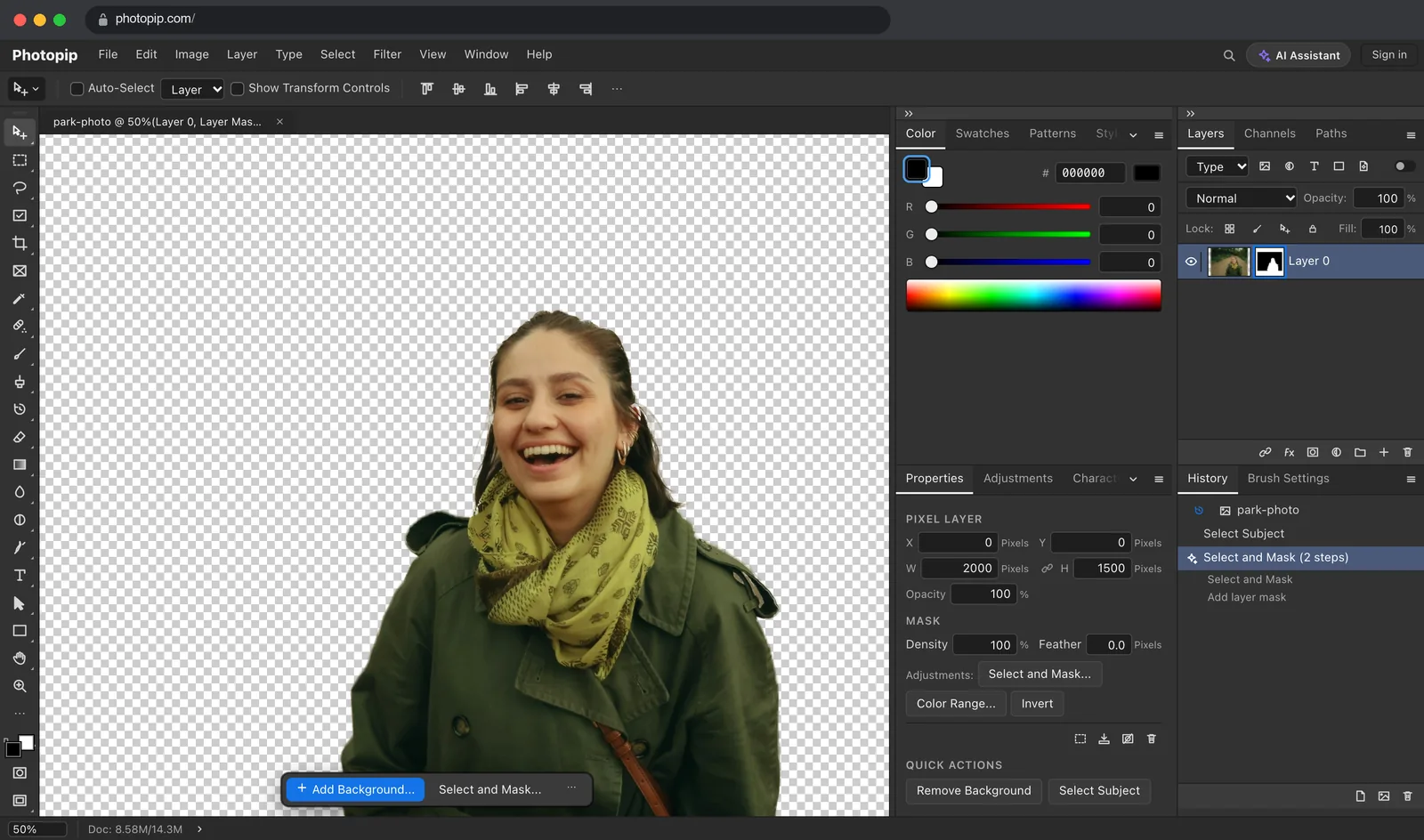 Remove a background with Select Subject and a layer mask Cut a person out of a photo and keep the original pixels under a mask, so you can fix the edges later. The menus are the ones you know from Photoshop.
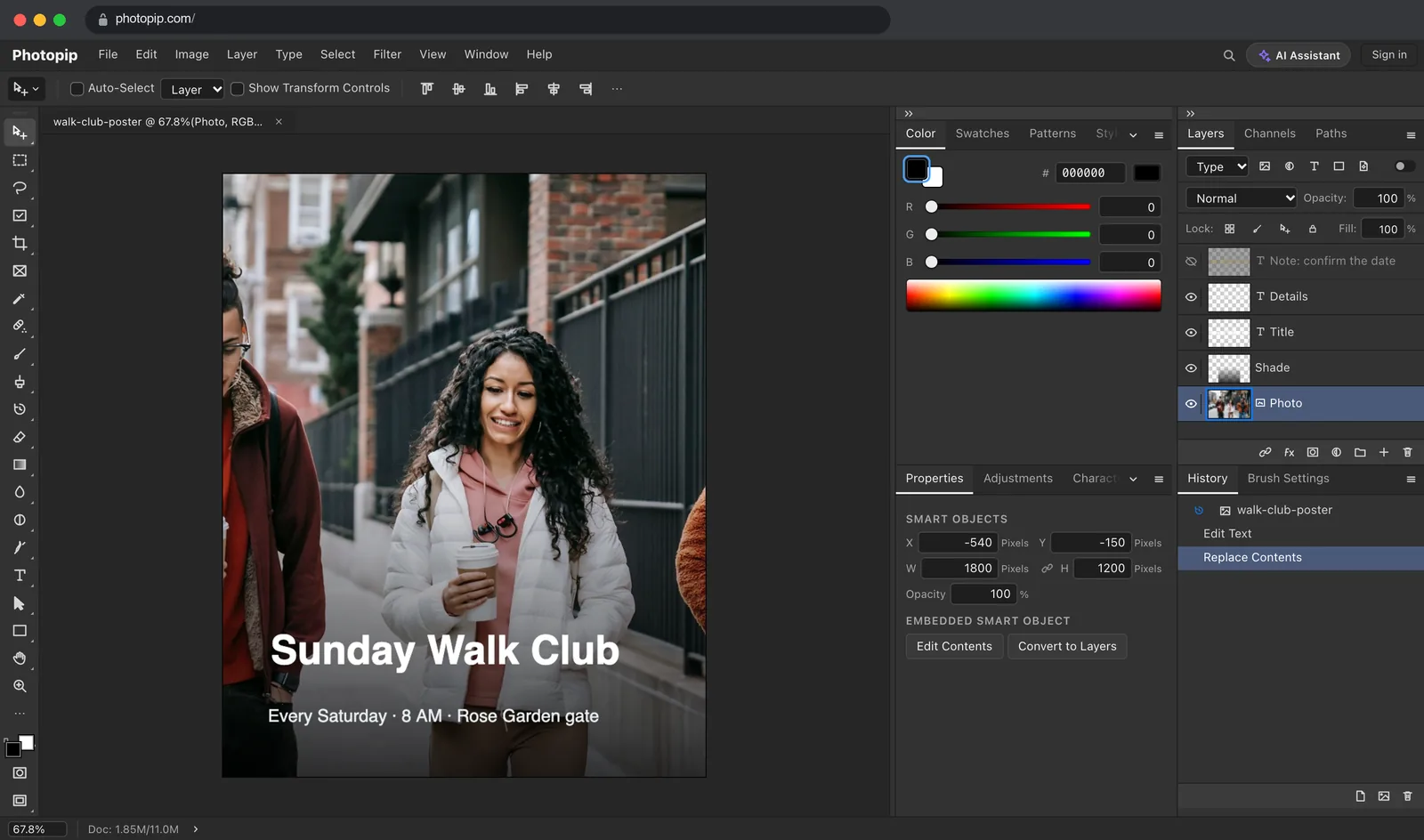 Edit the text and photos in a PSD file Open a layered PSD in the browser, change the headline, put a new photo into the smart object, and save it as a PSD that still has its layers.
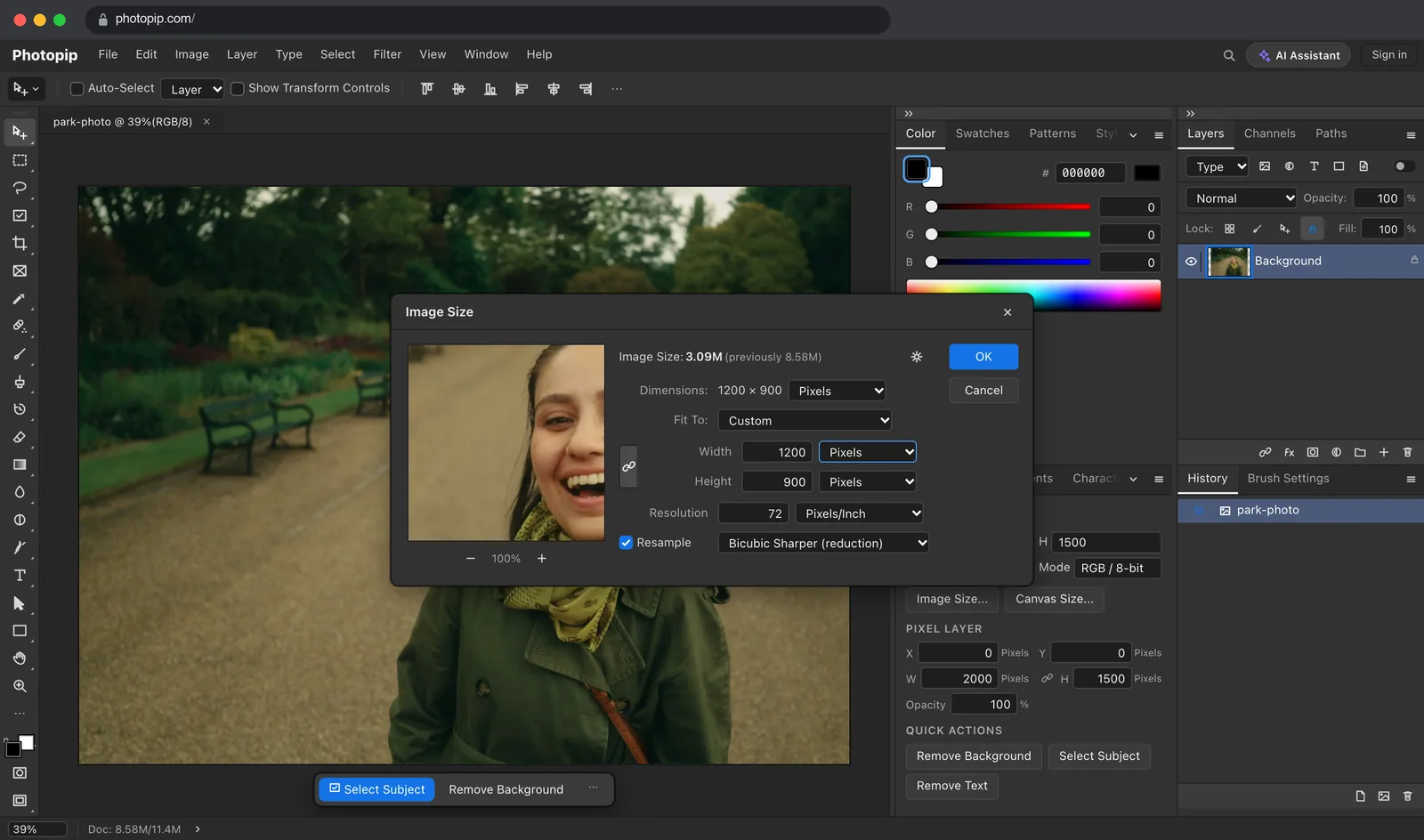 Resize an image in the Image Size dialog without losing quality Make a photo smaller for the web, set it up for print, or make a small one bigger, and know which setting changes the pixels and which does not.
Frequently asked questions
Do these tutorials work in Photoshop too?
Yes. Photopip uses the same menu names, dialogs and shortcuts, so the steps carry over. The screenshots show Photopip, which runs in the browser with nothing to install.
Do I need an account?
No. Open the editor and follow along. Some AI steps, such as Select Subject, send a smaller copy of the image to our server; the tutorial says so where it happens.
Where do the sample files come from?
The photos are from Unsplash and Pexels under their free licenses, and the sample PSD was made in Photopip for these tutorials.
Keep reading
Remove a background with Select Subject and a layer mask Remove a background like in Photoshop: Select > Subject, Select and Mask for the hair, then a layer mask you can still edit. Free in your browser. Edit the text and photos in a PSD file Edit a PSD without Photoshop: change a type layer, swap the photo in a smart object with Replace Contents, and save it as a layered PSD. Free in the browser. Resize an image in the Image Size dialog without losing quality Use Image Size like in Photoshop: the right Resample method to shrink a photo, 300 ppi for print without touching pixels, and a 2× AI upscale for small images.