Layers
History
Layers
History
Combine two photos into one
Put two photos side by side or one above the other; each one stays a layer you can still move.
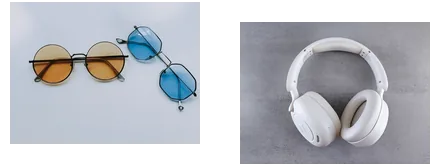 2 photos
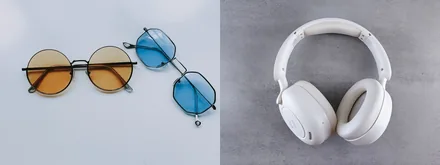 1 image · 2400 × 900
How to use it
Choose two photos, or more, and Photopip stitches them into one new image: side by side, matched to the taller photo, with nothing cropped. Each photo lands on its own layer, so you can still nudge one or add a caption. The card shows the final pixel size before you click Download JPG.
- Click Choose 2 photos and select both files in the file dialog. They line up in the order the dialog gives them, usually by file name.
- In the card, pick Side by side or Stacked, and set Gap for white space between them. The size line updates, for example 2400 × 900.
- Click Download JPG. For a grid with more columns or another background color, click More options… to open File > Stitch Images....
| Item | Details |
|---|---|
| Opens | JPG, PNG, WebP, HEIC and other images; 2 or more |
| Saves | One JPG at quality 92; PNG from File > Export > Export As... |
| Where | In your browser; the photos are not uploaded |
Photos are matched to the taller one (side by side) or the wider one (stacked) and scaled in proportion, never cropped, so the smaller photo is enlarged and can look softer. Photopip does not detect overlap: two screenshots that repeat a few lines will show the repeat. On a computer the result can be up to 16384 px on a side and 100 million pixels; on an iPhone or iPad the limit is about 16.7 million pixels, so two phone photos side by side are scaled down to fit and the card says so.
- Can I combine more than two photos?
- Yes. Select as many as you like; side by side puts them in one row, Stacked in one column, and Grid in rows of two. For other column counts, click More options… and choose the photos again in that dialog.
- One photo looks softer than the other.
- Side by side matches the heights to the taller photo, so the shorter one is enlarged. Use photos of a similar size, or choose Stacked, which matches the widths instead.
- Can I move a photo after stitching?
- Yes. Each photo is a layer named after its file; drag it with the Move Tool (V). Anything moved outside the canvas is not downloaded.
- The photos are in the wrong order.
- They line up in the order the file dialog gives them, usually by file name. Rename the files (1, 2…) and choose them again, or swap them with the Move Tool (V).
Updated 2026-10-27
More toolsPassport photoAdd watermarkBulk certificatesImage to pixel artUS passport photoRemove textAI photo editorRemove background
Combine two photos into one
Put two photos side by side or one above the other; each one stays a layer you can still move.
2 photos1 image · 2400 × 900How to use it
Choose two photos, or more, and Photopip stitches them into one new image: side by side, matched to the taller photo, with nothing cropped. Each photo lands on its own layer, so you can still nudge one or add a caption. The card shows the final pixel size before you click Download JPG.
- Click Choose 2 photos and select both files in the file dialog. They line up in the order the dialog gives them, usually by file name.
- In the card, pick Side by side or Stacked, and set Gap for white space between them. The size line updates, for example 2400 × 900.
- Click Download JPG. For a grid with more columns or another background color, click More options… to open File > Stitch Images....
| Item | Details |
|---|---|
| Opens | JPG, PNG, WebP, HEIC and other images; 2 or more |
| Saves | One JPG at quality 92; PNG from File > Export > Export As... |
| Where | In your browser; the photos are not uploaded |
Photos are matched to the taller one (side by side) or the wider one (stacked) and scaled in proportion, never cropped, so the smaller photo is enlarged and can look softer. Photopip does not detect overlap: two screenshots that repeat a few lines will show the repeat. On a computer the result can be up to 16384 px on a side and 100 million pixels; on an iPhone or iPad the limit is about 16.7 million pixels, so two phone photos side by side are scaled down to fit and the card says so.
- Can I combine more than two photos?
- Yes. Select as many as you like; side by side puts them in one row, Stacked in one column, and Grid in rows of two. For other column counts, click More options… and choose the photos again in that dialog.
- One photo looks softer than the other.
- Side by side matches the heights to the taller photo, so the shorter one is enlarged. Use photos of a similar size, or choose Stacked, which matches the widths instead.
- Can I move a photo after stitching?
- Yes. Each photo is a layer named after its file; drag it with the Move Tool (V). Anything moved outside the canvas is not downloaded.
- The photos are in the wrong order.
- They line up in the order the file dialog gives them, usually by file name. Rename the files (1, 2…) and choose them again, or swap them with the Move Tool (V).
Updated 2026-10-27
More toolsPassport photoAdd watermarkBulk certificatesImage to pixel artUS passport photoRemove textAI photo editorRemove background