Layers
History
Layers
History
Online screenshot editor
Ctrl+V paste a screenshot to add red arrows, solid black redactions, rounded gradient frames or editable text—free on your device.
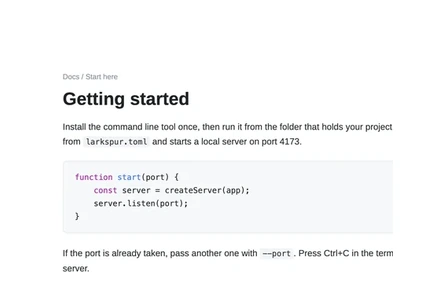 Raw screenshot
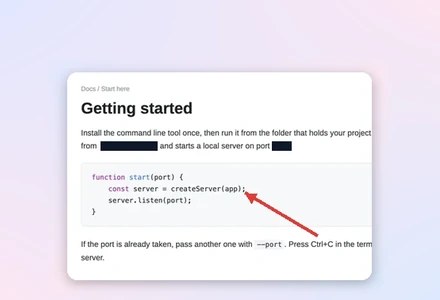 Annotated + framed
How to use it
Paste a fresh screenshot straight from your clipboard (Ctrl+V / Cmd+V) without creating a file first. Photopip opens a privacy-first workspace with the Arrow Line tool ready: draw closed-triangle vector arrows, cover phone numbers or tokens with irreversible opaque black boxes, wrap any capture in a 1-step rounded shadow gradient frame, or switch to dedicated Photopip tools for editable text edits, image translation, removing text, pixelating, copying text out and sizing screenshots for App Store or Google Play.
- Press Ctrl+V anywhere on the page to paste your clipboard screenshot, drag a PNG/JPG in, or click Choose or Ctrl+V paste screenshot.
- The card pre-selects Red Arrow: drag across any target button or code line to place a clean 3 px pointing arrow (toggle Arrowhead in the top bar anytime).
- Click Black Redact to drag solid #000000 rectangles over private keys, names or amounts, click Gradient Frame to add rounded corners + drop shadow + pastel backdrop in one undoable step, or click Edit Image Text to convert screenshot copy into editable text layers.
- Choose PNG, JPG or WEBP and download flattened pixels (or Save PSD to retain arrow and text layers).
| Tool / Companion Page | What it handles |
|---|---|
| Red Arrow & Black Redact | Closed triangular vector arrowhead on the Line tool plus solid opaque #000000 rectangle blocks inside the card |
| Gradient Frame (1-step) | Automatically unlocks background, applies rounded mask + soft shadow, expands canvas and adds an editable gradient fill layer below |
| Text & Translation Hub | Connects directly to Edit Text in Image and Remove Text from a Screenshot below, plus Screenshot to Text OCR, Translate Image and Pixelate inside Photopip |
| Privacy & Store Sizes | All annotations and framing run locally on sensitive mode; switch to Redact Screenshot, App Store or Google Play Screenshot Sizes anytime |
Because everything stays local during annotation, exporting JPG or PNG from the card flattens your redaction boxes permanently into pixels so private tokens cannot be uncovered; if you choose Save PSD, annotation layers remain individually toggleable. Dedicated workflows for Redact a screenshot, Remove text from a screenshot, and Edit text in image are linked directly below, while Pixelate an image and App Store / Google Play screenshot sizes remain available from the Photopip tool hub.
- Can I paste a screenshot right after pressing PrintScreen or Cmd+Shift+4?
- Yes. Press Ctrl+V (Windows) or Cmd+V (Mac) right on this page without saving a temporary file to disk first.
- Are solid black redactions truly safer than blur or mosaic?
- Yes. Blur and mosaic filters can often be partially reconstructed when numbers or high-contrast type sit on uniform backgrounds. Black redaction rectangles downloaded as flattened PNG or JPG permanently overwrite those pixels.
- Can I customize the gradient frame margins or arrow thickness afterward?
- Yes. Gradient Frame adds real editable mask corners, drop shadow effects and a linear gradient fill layer underneath—double-click the fill layer or adjust Weight on any selected arrow anytime.
- Do sensitive screenshots get uploaded anywhere while marking them up?
- No. All arrows, black boxes, gradient backdrops, cropping and local exports happen exclusively in your browser memory with Clarity session recording disabled.
Updated 2026-11-22
More toolsRedact a screenshotRemove text from a screenshotEdit text in image
Online screenshot editor
Ctrl+V paste a screenshot to add red arrows, solid black redactions, rounded gradient frames or editable text—free on your device.
Raw screenshotAnnotated + framedHow to use it
Paste a fresh screenshot straight from your clipboard (Ctrl+V / Cmd+V) without creating a file first. Photopip opens a privacy-first workspace with the Arrow Line tool ready: draw closed-triangle vector arrows, cover phone numbers or tokens with irreversible opaque black boxes, wrap any capture in a 1-step rounded shadow gradient frame, or switch to dedicated Photopip tools for editable text edits, image translation, removing text, pixelating, copying text out and sizing screenshots for App Store or Google Play.
- Press Ctrl+V anywhere on the page to paste your clipboard screenshot, drag a PNG/JPG in, or click Choose or Ctrl+V paste screenshot.
- The card pre-selects Red Arrow: drag across any target button or code line to place a clean 3 px pointing arrow (toggle Arrowhead in the top bar anytime).
- Click Black Redact to drag solid #000000 rectangles over private keys, names or amounts, click Gradient Frame to add rounded corners + drop shadow + pastel backdrop in one undoable step, or click Edit Image Text to convert screenshot copy into editable text layers.
- Choose PNG, JPG or WEBP and download flattened pixels (or Save PSD to retain arrow and text layers).
| Tool / Companion Page | What it handles |
|---|---|
| Red Arrow & Black Redact | Closed triangular vector arrowhead on the Line tool plus solid opaque #000000 rectangle blocks inside the card |
| Gradient Frame (1-step) | Automatically unlocks background, applies rounded mask + soft shadow, expands canvas and adds an editable gradient fill layer below |
| Text & Translation Hub | Connects directly to Edit Text in Image and Remove Text from a Screenshot below, plus Screenshot to Text OCR, Translate Image and Pixelate inside Photopip |
| Privacy & Store Sizes | All annotations and framing run locally on sensitive mode; switch to Redact Screenshot, App Store or Google Play Screenshot Sizes anytime |
Because everything stays local during annotation, exporting JPG or PNG from the card flattens your redaction boxes permanently into pixels so private tokens cannot be uncovered; if you choose Save PSD, annotation layers remain individually toggleable. Dedicated workflows for Redact a screenshot, Remove text from a screenshot, and Edit text in image are linked directly below, while Pixelate an image and App Store / Google Play screenshot sizes remain available from the Photopip tool hub.
- Can I paste a screenshot right after pressing PrintScreen or Cmd+Shift+4?
- Yes. Press Ctrl+V (Windows) or Cmd+V (Mac) right on this page without saving a temporary file to disk first.
- Are solid black redactions truly safer than blur or mosaic?
- Yes. Blur and mosaic filters can often be partially reconstructed when numbers or high-contrast type sit on uniform backgrounds. Black redaction rectangles downloaded as flattened PNG or JPG permanently overwrite those pixels.
- Can I customize the gradient frame margins or arrow thickness afterward?
- Yes. Gradient Frame adds real editable mask corners, drop shadow effects and a linear gradient fill layer underneath—double-click the fill layer or adjust Weight on any selected arrow anytime.
- Do sensitive screenshots get uploaded anywhere while marking them up?
- No. All arrows, black boxes, gradient backdrops, cropping and local exports happen exclusively in your browser memory with Clarity session recording disabled.
Updated 2026-11-22
More toolsRedact a screenshotRemove text from a screenshotEdit text in image