Layers
History
Layers
History
Redact a screenshot
Black out private text on a screenshot before you share it.
How to use it
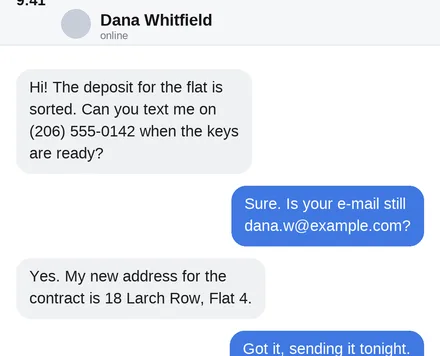
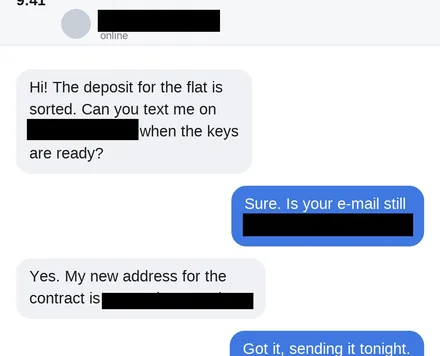
Choose a screenshot and it opens with the Rectangle Tool selected and a black fill. Drag over a name, a number or an address and the box turns solid black; drag again for the next one. The card saves a flattened PNG (or JPG, if that is what you opened), so the blocks are in the pixels rather than on layers someone could hide. There is no blur or mosaic here, because pixelated text can be read back.
- Click Choose a screenshot, or drop one on the page. It opens with the Rectangle Tool selected and the fill set to black.
- Drag over a name, a phone number or an address. When you let go, the box is solid black and the card appears. A single tap opens a size box instead; cancel it and drag. On a phone, spread two fingers to zoom in first so the line is easy to hit.
- Drag a box over every other piece of private text, the name at the top included. Each box is its own layer until you download, so Ctrl+Z (Command+Z on a Mac) takes back the last one.
- Read the whole screenshot once more, then click Download PNG. The file from the card is flattened, with no layers and no metadata.
| Details | |
|---|---|
| Covers | The boxes you drag; solid black, or another fill color you pick |
| Saves | From the card: a flattened PNG (or JPG if that is what you opened), no layers, no metadata |
| Limit & where | One picture at a time; up to 100 million pixels; in your browser, nothing uploaded |
Photopip does not find names or numbers for you: read the screenshot once more before you download. The block hides the text in this picture only; the original screenshot, the chat and your clipboard still have it, and the width of the block shows roughly how long the text was. One picture at a time; PDFs are not handled here. If you close the card (✕) and save a PSD instead, each block stays a separate layer that anyone with the file can hide.
- Why is there no blur or mosaic?
- Text under a blur or a mosaic can be read back: there are public tools that recover pixelated text from screenshots. A solid block replaces those pixels in the file you download.
- Can someone remove the black block later?
- Not from the file you download from the card: it is flattened and the block is fully opaque, so the pixels underneath are gone. The text still exists in the original screenshot and wherever you copied it from.
- Can it find phone numbers and e-mail addresses by itself?
- Not yet. You drag each box.
- Can I use a white block on a light screenshot?
- On a computer, yes: click the Fill swatch in the options bar and pick white before you drag. The box that is still selected turns white with it.
- Does it work on a PDF?
- No, pictures only. Turn the page into an image first with PDF to JPG, then redact it here.
Updated 2026-10-24
More toolsBlur facesBlur a license plateRemove text from a screenshot
Redact a screenshot
Black out private text on a screenshot before you share it.
How to use it
Choose a screenshot and it opens with the Rectangle Tool selected and a black fill. Drag over a name, a number or an address and the box turns solid black; drag again for the next one. The card saves a flattened PNG (or JPG, if that is what you opened), so the blocks are in the pixels rather than on layers someone could hide. There is no blur or mosaic here, because pixelated text can be read back.
- Click Choose a screenshot, or drop one on the page. It opens with the Rectangle Tool selected and the fill set to black.
- Drag over a name, a phone number or an address. When you let go, the box is solid black and the card appears. A single tap opens a size box instead; cancel it and drag. On a phone, spread two fingers to zoom in first so the line is easy to hit.
- Drag a box over every other piece of private text, the name at the top included. Each box is its own layer until you download, so Ctrl+Z (Command+Z on a Mac) takes back the last one.
- Read the whole screenshot once more, then click Download PNG. The file from the card is flattened, with no layers and no metadata.
| Details | |
|---|---|
| Covers | The boxes you drag; solid black, or another fill color you pick |
| Saves | From the card: a flattened PNG (or JPG if that is what you opened), no layers, no metadata |
| Limit & where | One picture at a time; up to 100 million pixels; in your browser, nothing uploaded |
Photopip does not find names or numbers for you: read the screenshot once more before you download. The block hides the text in this picture only; the original screenshot, the chat and your clipboard still have it, and the width of the block shows roughly how long the text was. One picture at a time; PDFs are not handled here. If you close the card (✕) and save a PSD instead, each block stays a separate layer that anyone with the file can hide.
- Why is there no blur or mosaic?
- Text under a blur or a mosaic can be read back: there are public tools that recover pixelated text from screenshots. A solid block replaces those pixels in the file you download.
- Can someone remove the black block later?
- Not from the file you download from the card: it is flattened and the block is fully opaque, so the pixels underneath are gone. The text still exists in the original screenshot and wherever you copied it from.
- Can it find phone numbers and e-mail addresses by itself?
- Not yet. You drag each box.
- Can I use a white block on a light screenshot?
- On a computer, yes: click the Fill swatch in the options bar and pick white before you drag. The box that is still selected turns white with it.
- Does it work on a PDF?
- No, pictures only. Turn the page into an image first with PDF to JPG, then redact it here.
Updated 2026-10-24
More toolsBlur facesBlur a license plateRemove text from a screenshot